Smart Rates is a GeekSeller feature that helps you automatically select the most efficient or cost-effective shipping method for your orders. Smart Rates compares real-time carrier rates (such as FedEx, UPS, USPS, etc.) based on speed and cost, then automatically picks the best option according to your preferences.
Benefits
-
Compliance: Helps maintain marketplace shipping standards by automatically following the carrier or service type requested by the marketplace (e.g., Walmart, Amazon).
-
Automation: No need to check each carrier manually — GeekSeller finds the best rate for you.
-
Flexibility: Create different templates for different shipping priorities or product types.
-
Cost Savings: Automatically select the cheapest or fastest option within your defined rules.
-
Time Efficiency: Print labels in bulk while maintaining accurate carrier selection.
How It Works
-
Create a Template
Go to your GeekSeller dashboard → Orders → Smart Rates. Each template defines how rates are compared and which carrier services are included. You can create multiple templates for different scenarios — for example, one for standard orders and another for expedited shipping. -
Select Your Preferences
-
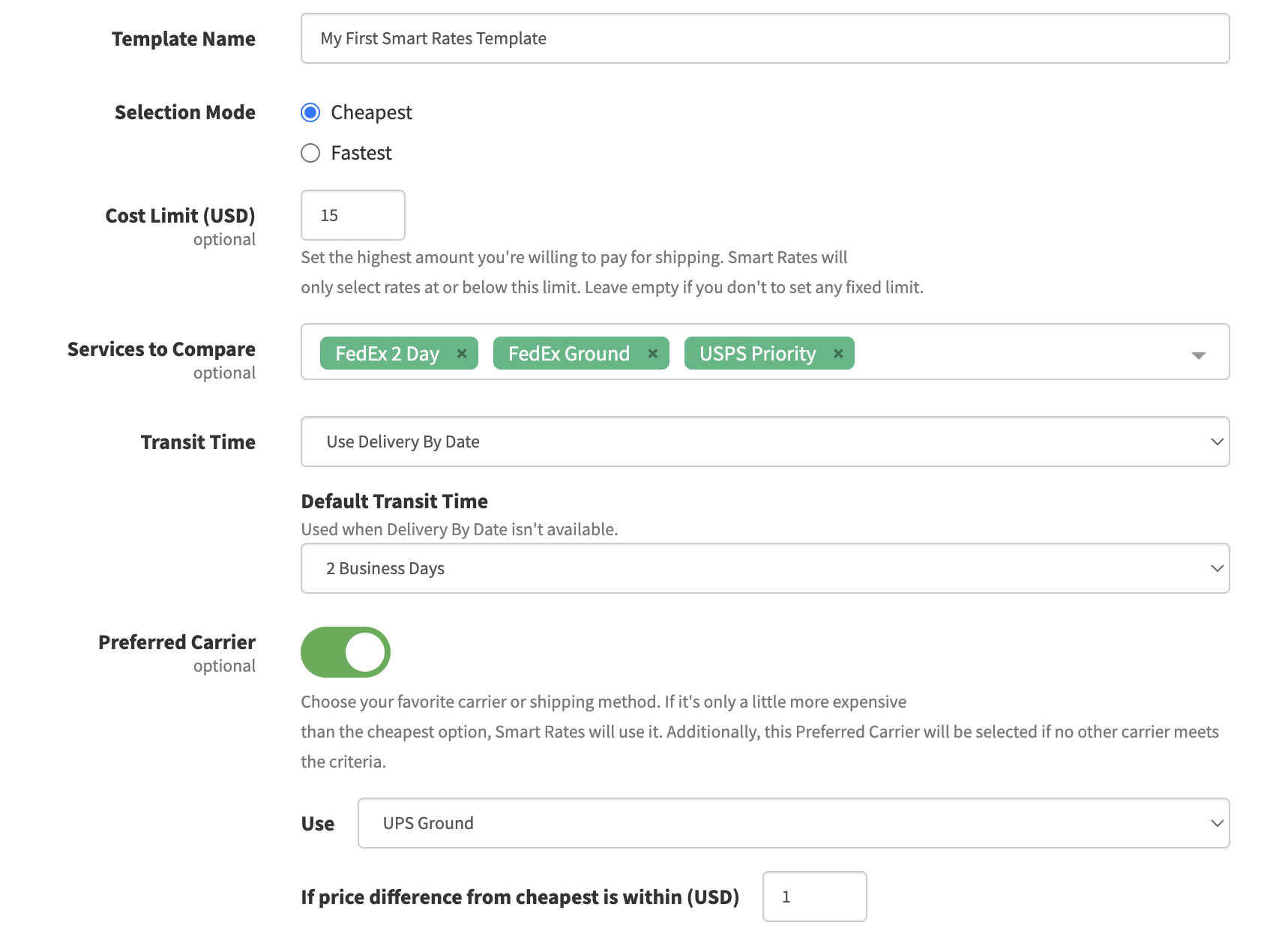
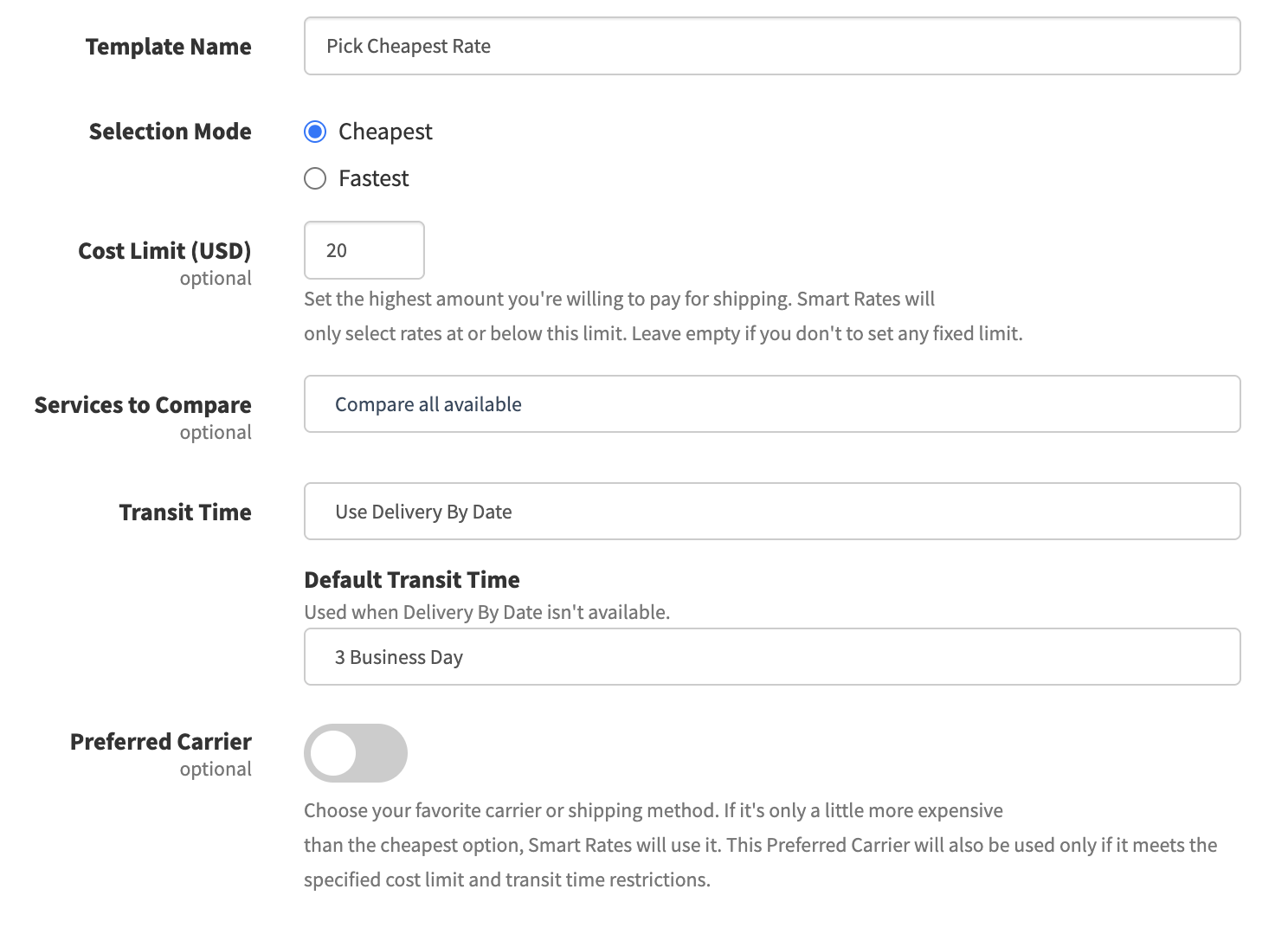
Selection Mode: Choose between Cheapest or Fastest delivery.
-
Cost Limit (optional): Optionally set the highest price you’re willing to pay for shipping.
-
Services to Compare (optional): Select which carriers or services (e.g., FedEx Ground, UPS Ground) you want Smart Rates to evaluate. By default, we will compare all the available rates.
-
Transit Time: Choose to use the delivery-by-date that comes with your orders or a default number of business days.
-
Preferred Carrier (optional): This option lets you set a preferred carrier (for example, UPS Ground) that Smart Rates will prioritize, even if it’s not the absolute cheapest. You can define a price tolerance — for instance, $1 more than the lowest rate — and if your preferred carrier’s price falls within that range, GeekSeller will automatically select it. This helps you stay consistent with your favorite or most reliable carrier while still keeping costs low. Of course, this preferred carrier will be selected only if it is within the specified Cost Limit and meets the Transit Time expectations.
-
-
Apply the Template
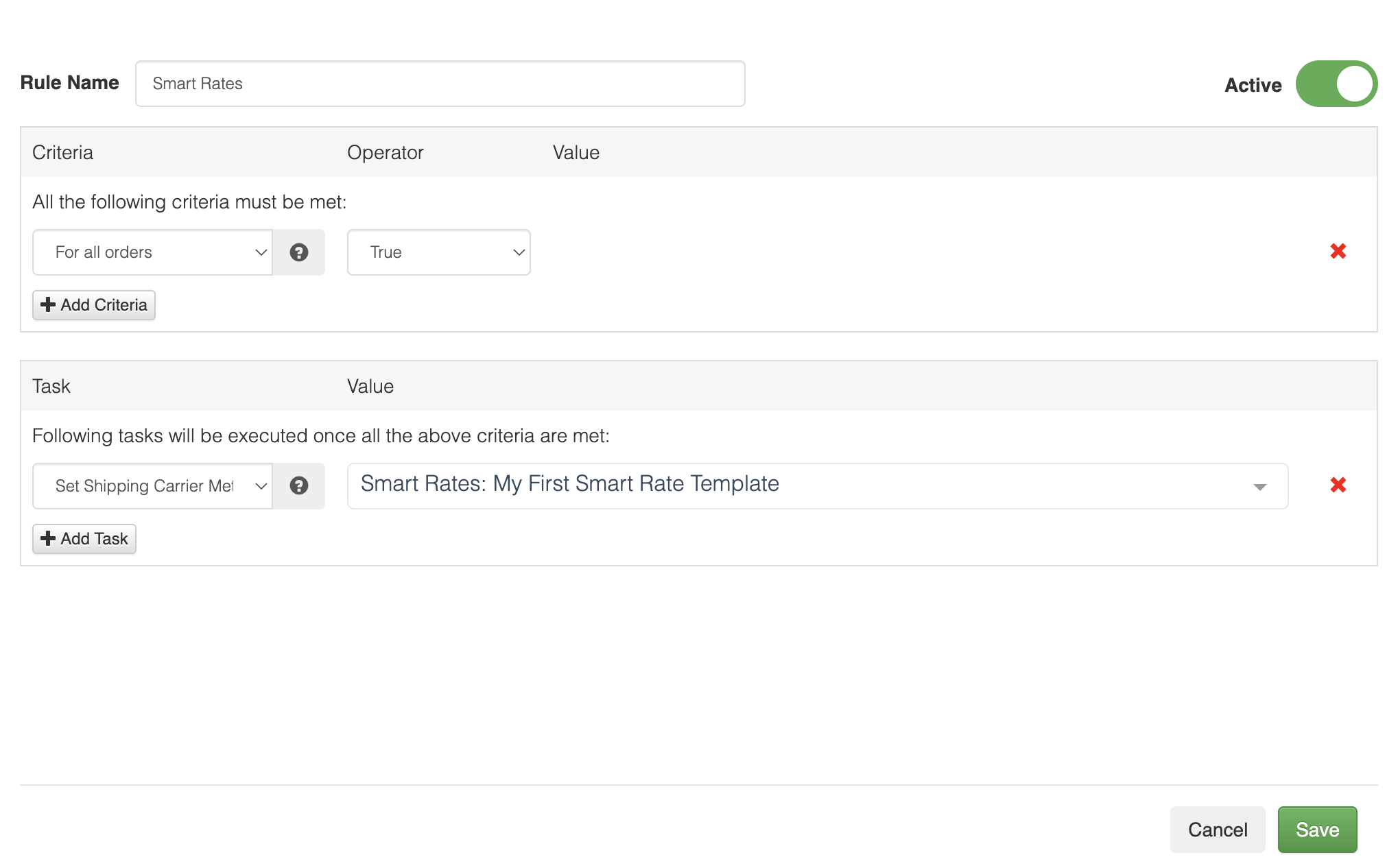
Create an automation rule that automatically applies your Smart Rates template. In your automation rule setup, use the task called “Set Shipping Carrier and Method,” but instead of selecting a specific carrier and shipping method (like UPS Ground or FedEx 2-Day), choose the Smart Rates template you’ve created. GeekSeller will then use that template to compare rates in real time and automatically select the best carrier and service for each order based on your defined preferences.Please note that the Smart Rates template is applied only to orders processed by this automation rule, meaning it will affect only new orders that arrive after the rule is created. Existing orders already in GeekSeller will not be updated.
Below is an example of how you would apply your new Smart Rates template to all orders:
-
Bulk and Manual Label Generation
Smart Rates works both when generating labels in bulk and manually.-
Bulk (Batches): When processing orders in batches, GeekSeller automatically applies your Smart Rates template to each order, compares the available carrier rates, and selects the best option based on your chosen rules.
-
Manual (Sidebar): When you open an individual order and generate rates from the sidebar, GeekSeller will display all available carrier options along with a clear indication of which one is suggested by Smart Rates.
-
In-Depth Details
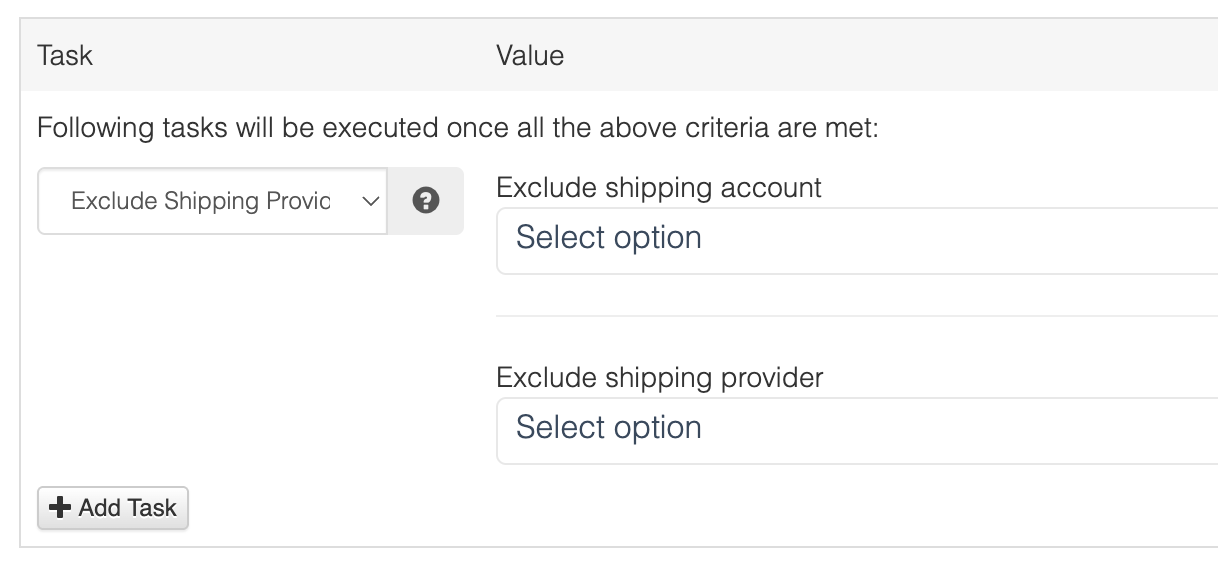
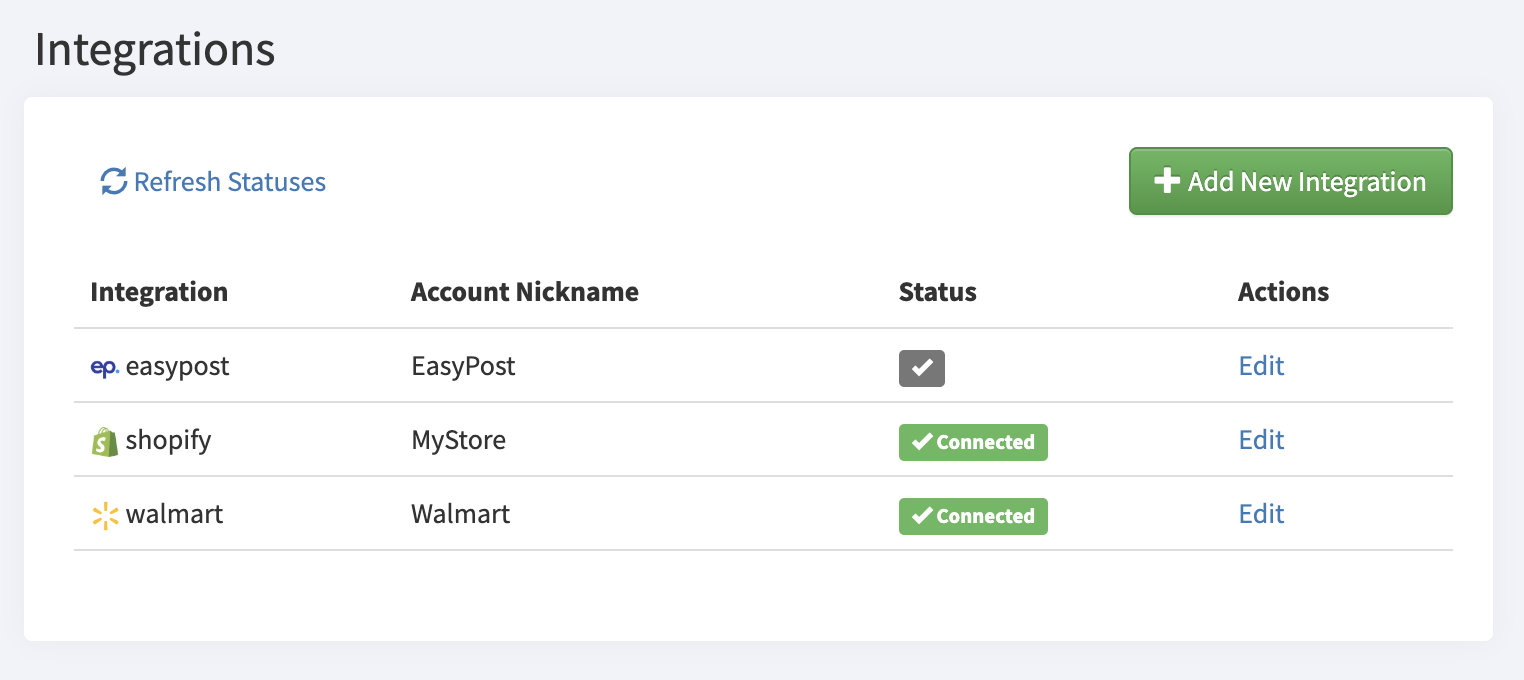
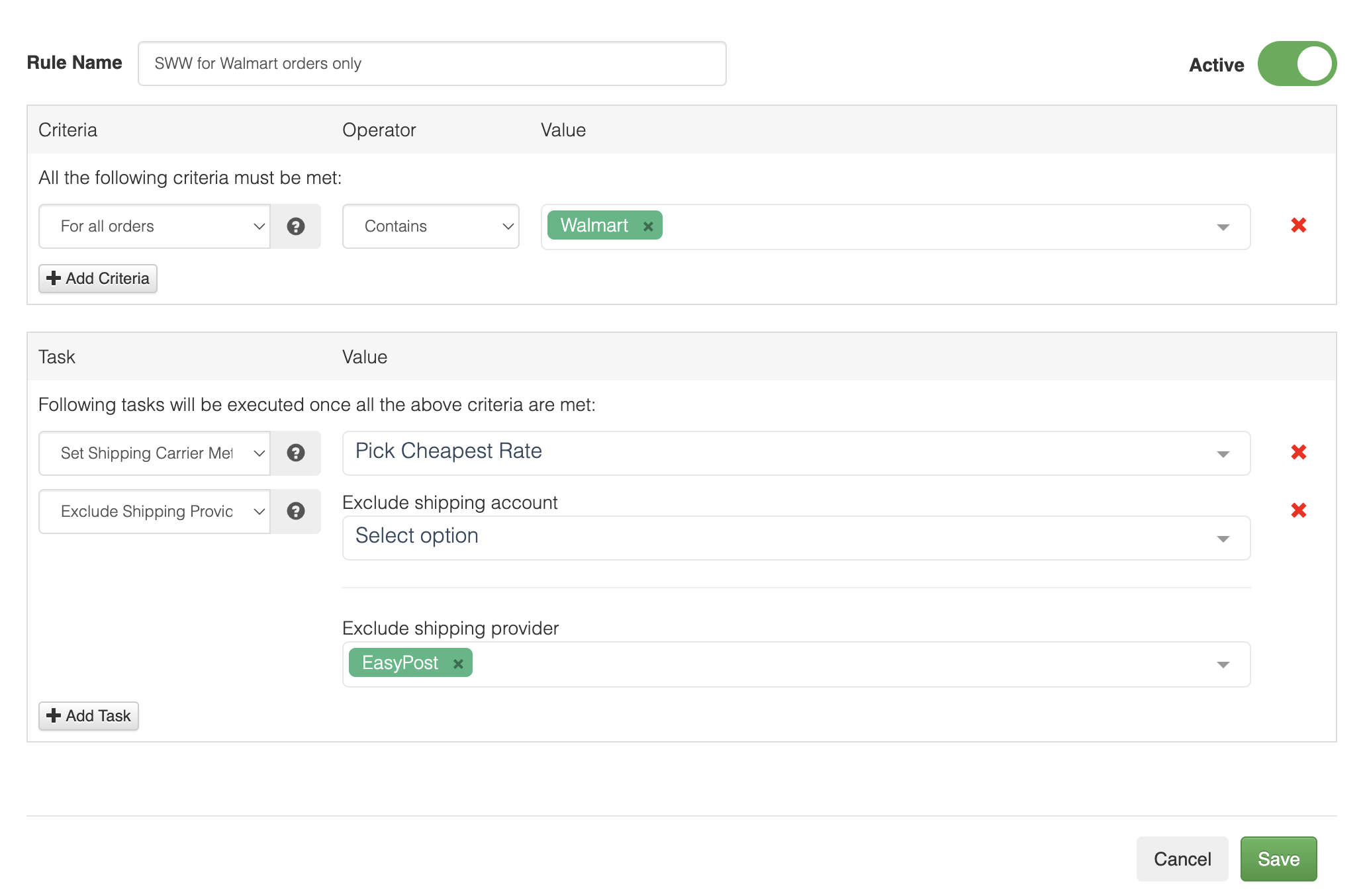
- Exclude EasyPost for Walmart orders. Please note that we use Exclude Shipping Provider to exclude all EasyPost accounts. If you had multiple EasyPost accounts but wanted to exclude only one, you would select Exclude Shipping Account instead. With Shipping Provider exclusion, you exclude all EasyPost accounts.
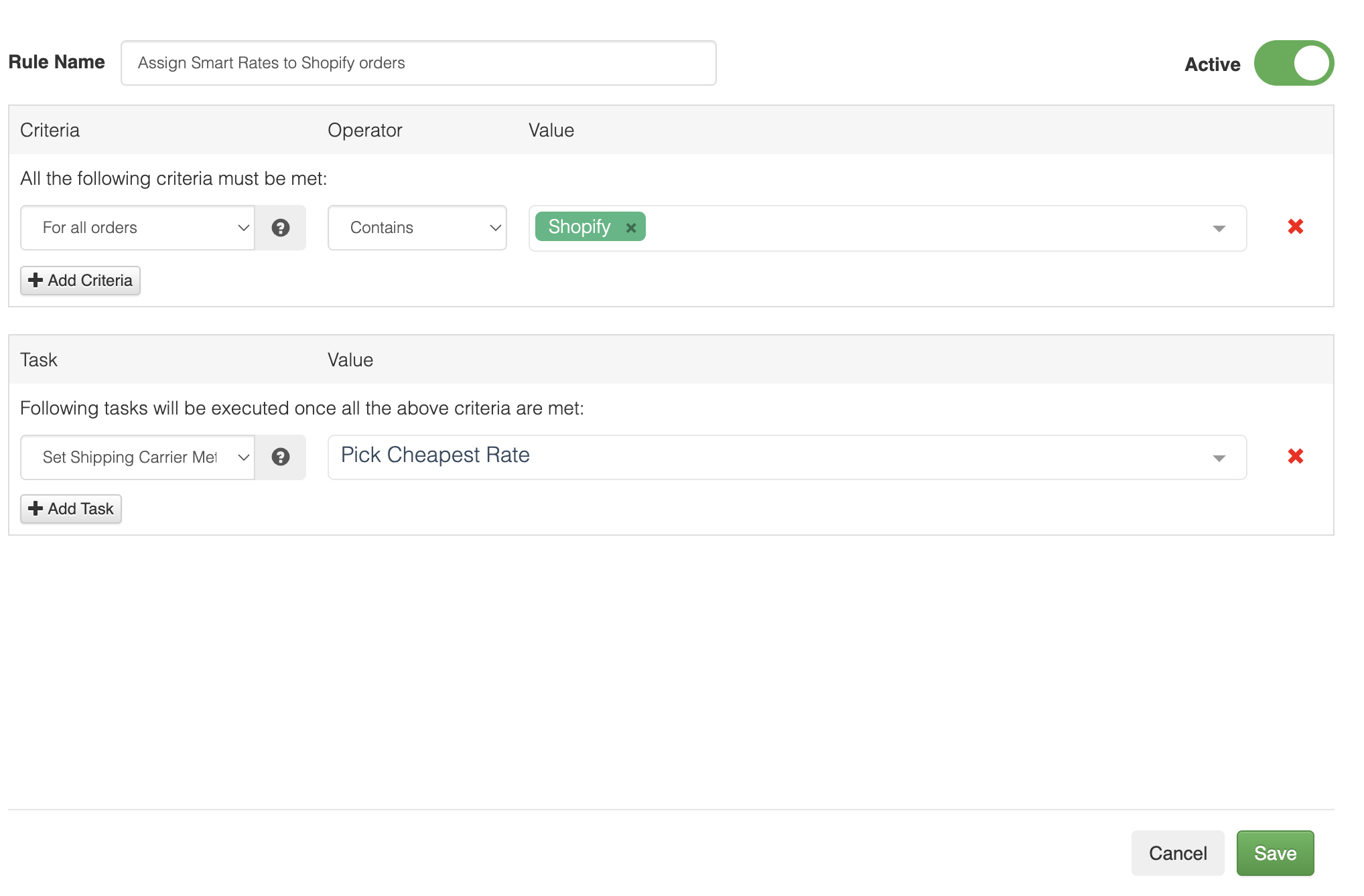
- An automation rule for Shopify orders does not need to exclude anything, since SWW labels are provided only for Walmart orders. Shopify will automatically use the only available provider, which is EasyPost in this case.
Example 2
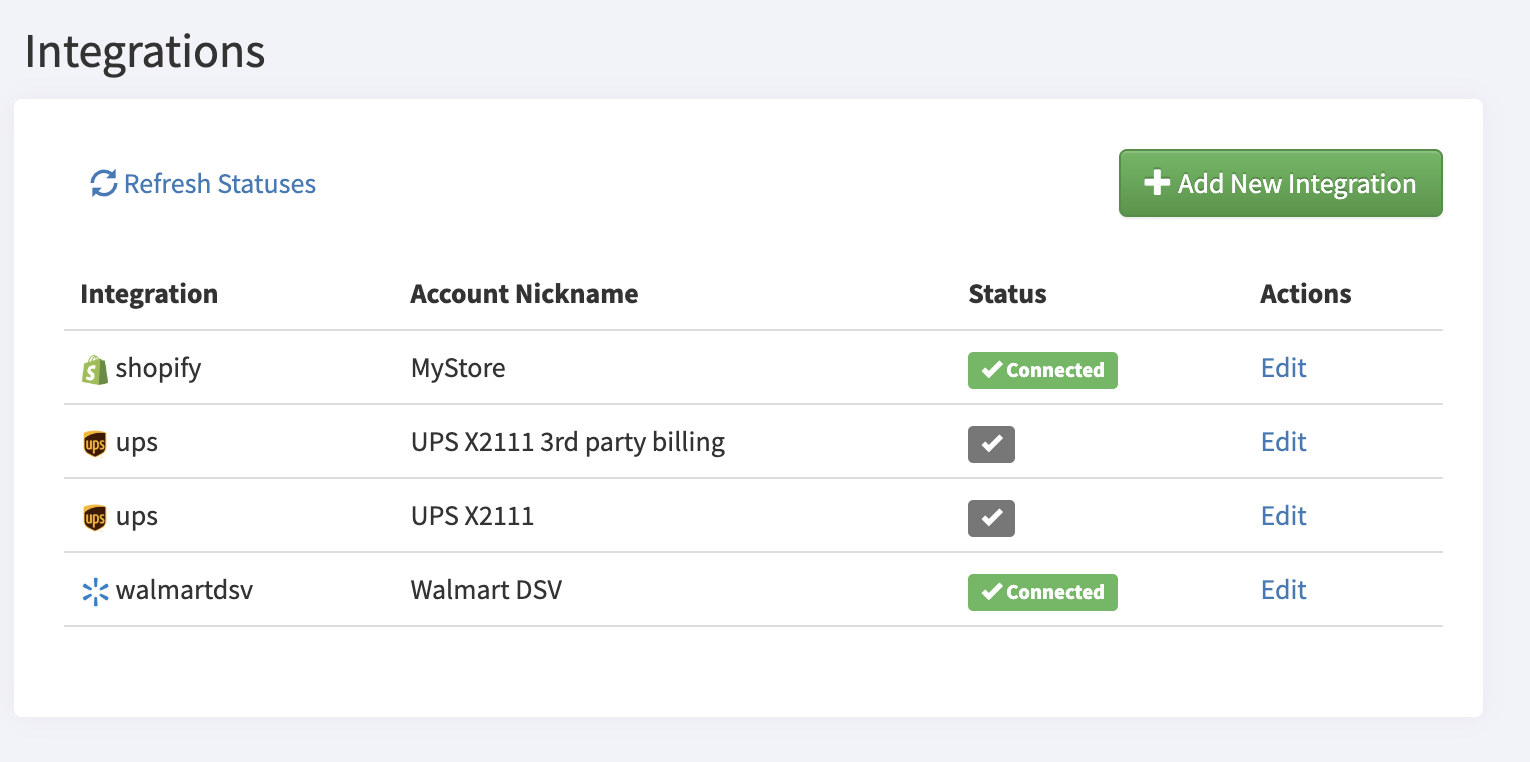
- Account has Shopify and Walmart DSV connected, and two UPS accounts: one with third-party billing used for Walmart DSV orders, and another UPS account without third-party billing used for non-DSV orders, such as those from Shopify.
- The setup is to choose the cheapest labels for Shopify orders using the regular UPS account. For DSV orders, we do not want Smart Rates, because those orders already come with a specific shipping method requested by Walmart, and sellers must follow it since Walmart is paying for those labels.
Smart Rates template:
- We use the same simple Smart Rate template as in Example 1.
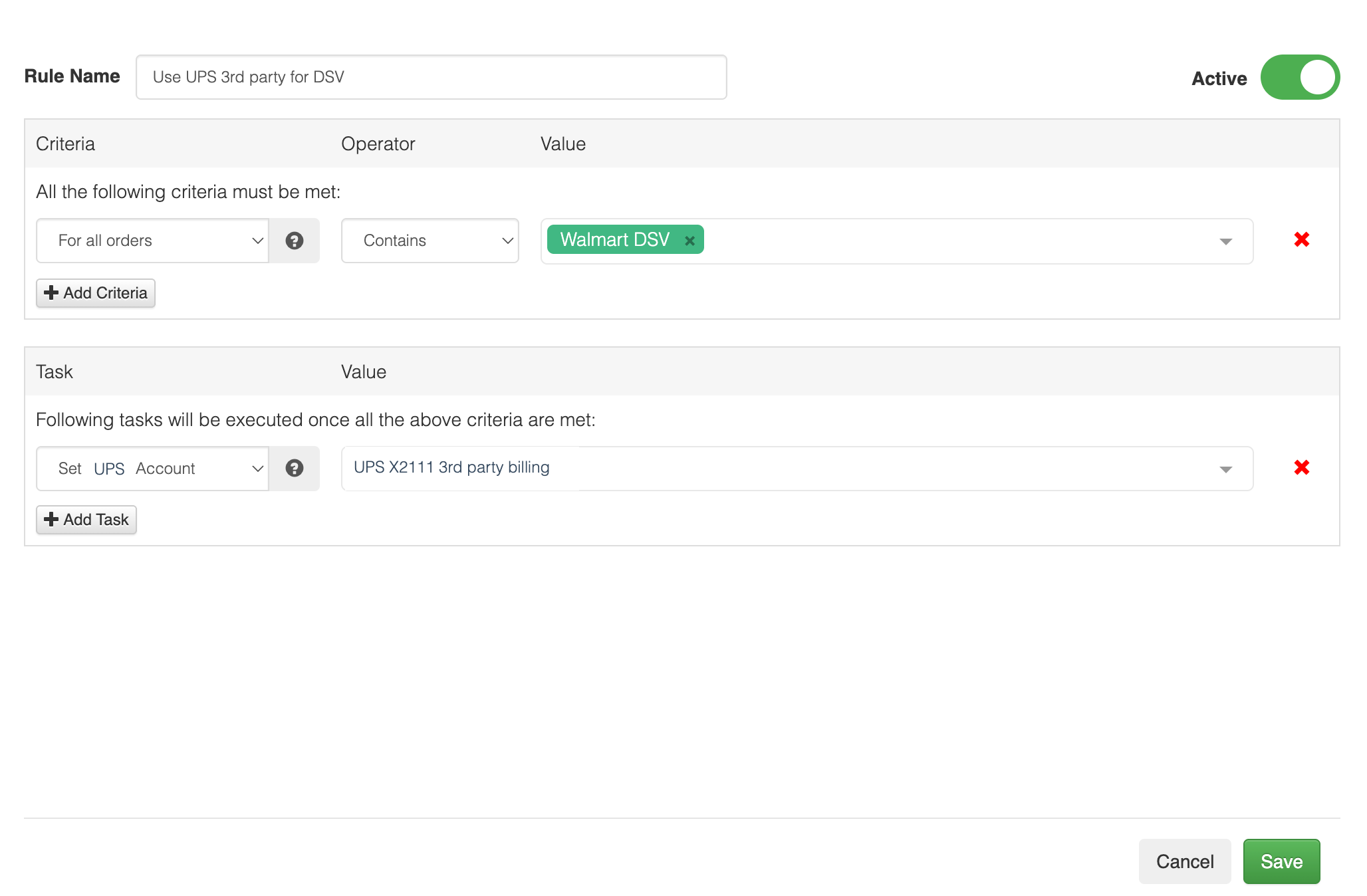
Automation rules to create:
- This automation rule simply tells our system to use the third-party UPS account for DSV labels. Our system will automatically detect the methods and map them.
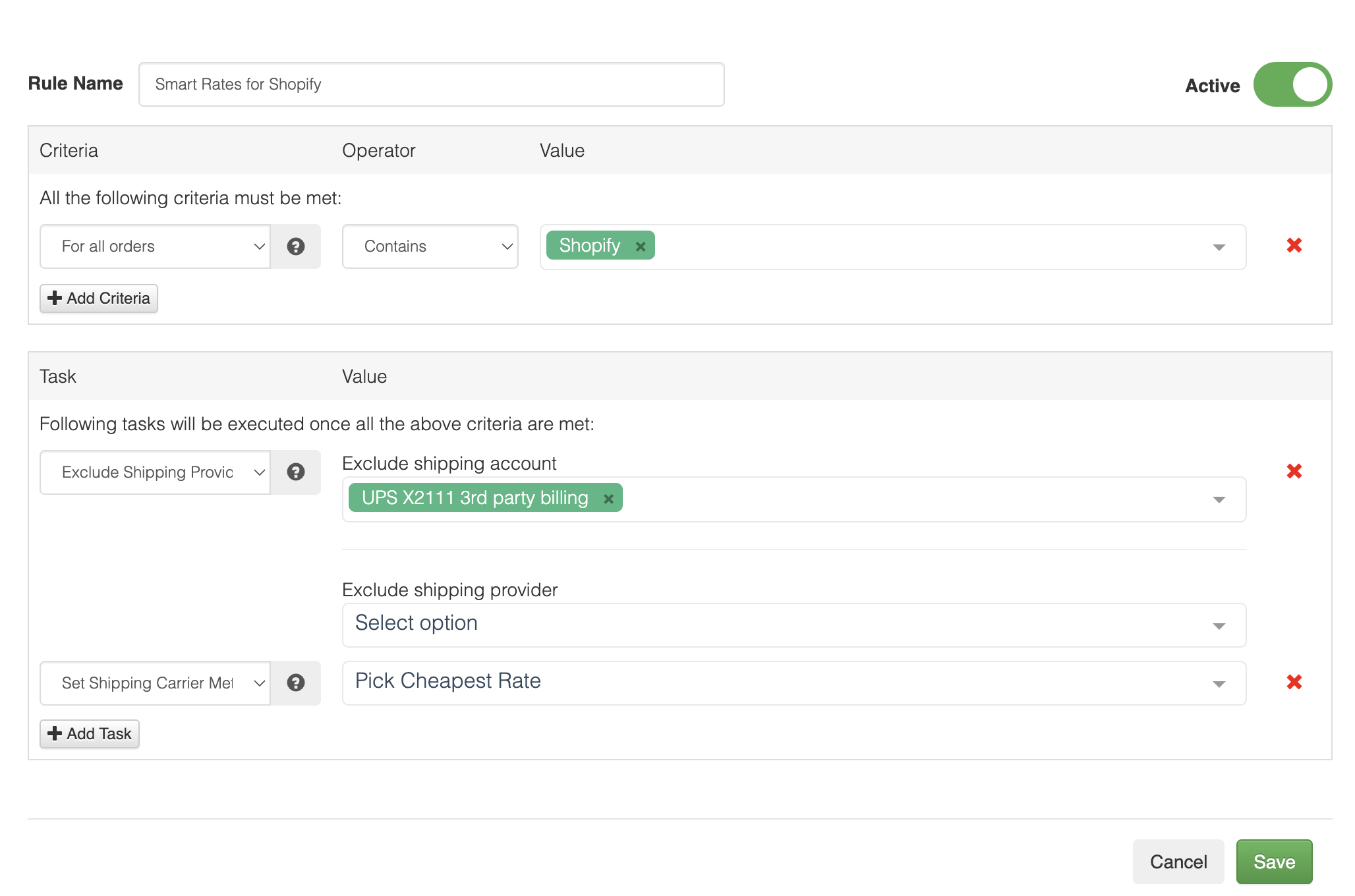
- This automation rule excludes the third-party UPS account for Shopify orders, so only the regular UPS account will be used. We then assign the Smart Rate to pick the cheapest option.