
GeekSeller’s Profit & Loss feature helps you track your costs, fees, and profits across different marketplaces.
Each marketplace provides different order information, so the data available in Profit & Loss may vary.
- Walmart currently provides the most detailed information. We use Walmart reconciliation reports to automatically import fees and other financial data.
- For other marketplaces, you can use Profit & Loss Automation Rules to add fees that are not included in the order information we receive.
Getting Started
- Go to Inventory and enter the cost of your products. This is important for calculating your profits accurately.
- Go to Add-ons and activate Profit & Loss.
- Once activated, your orders will automatically start appearing in the Profit & Loss section.
Most marketplace orders are added automatically without a significant delay. Walmart financial data may take longer because Walmart releases reconciliation reports every two weeks.
You can also create Profit & Loss Automation Rules to calculate additional fees.
Automatic Shipping Costs
If an order is fulfilled through a service such as TikTok FBT MCF, Walmart WFS Multi-Channel Solutions (MCS), Amazon Multi-Channel Fulfillment (MCF), or ShipStation, GeekSeller can automatically add the fulfillment or shipping cost to Profit & Loss.
This happens when GeekSeller has access to the actual cost of fulfilling the order.
You do not need to create Automation Rules for these costs, as they are added automatically when the information is available.
Profit & Loss Automation Rules
Automation Rules allow you to automatically add fees to orders based on conditions you define.
They work similarly to Order Automation Rules.
When creating a rule:
- Select the criteria that determine which orders or products the rule applies to.
- Choose the fee type.
- Enter the fee amount.
-
Fees added by Automation Rules appear in the Profit & Loss table under the name of the rule that created them.
There are two types of fees you can add.
1. Total Fees
Use Total Fees when you want to add a fee to the entire order.
GeekSeller calculates the total fee and distributes it across all units in the order.
Example:
An order contains:
- SKU A: 2 units
- SKU B: 1 unit
You create a rule that adds a $6 Total Fee.
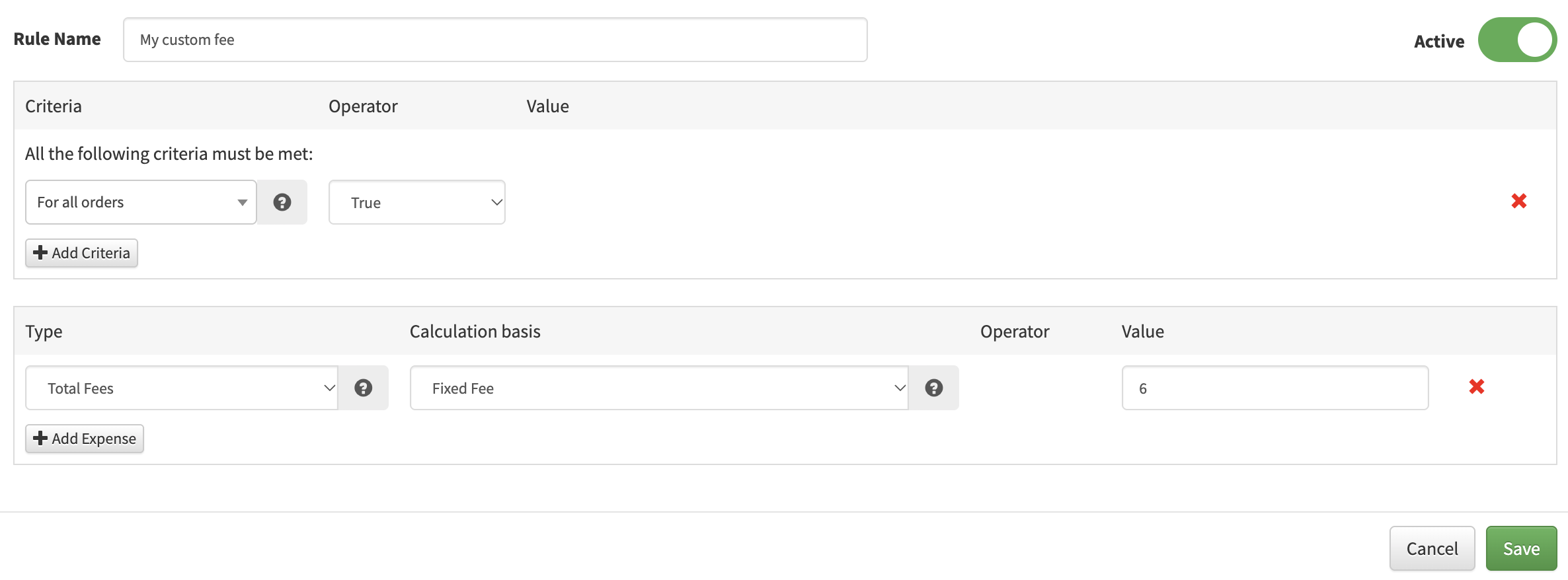
GeekSeller divides $6 by 3 units, resulting in $2 per unit.
The fees are assigned as follows:
| Product | Quantity | Assigned Fee |
|---|---|---|
| SKU A | 2 | $4 |
| SKU B | 1 | $2 |
This ensures the entire $6 fee is included in Profit & Loss and properly distributed across products.
2. Per Unit Fees
Use Per Unit Fees when you want to add a fee for each individual unit.
Unlike Total Fees, the amount is not divided across the order. Instead, it is multiplied by the quantity of matching products.
Example:
An order contains:
- SKU A: 2 units
- SKU B: 1 unit
You create a rule that adds a $2 Per Unit Fee.
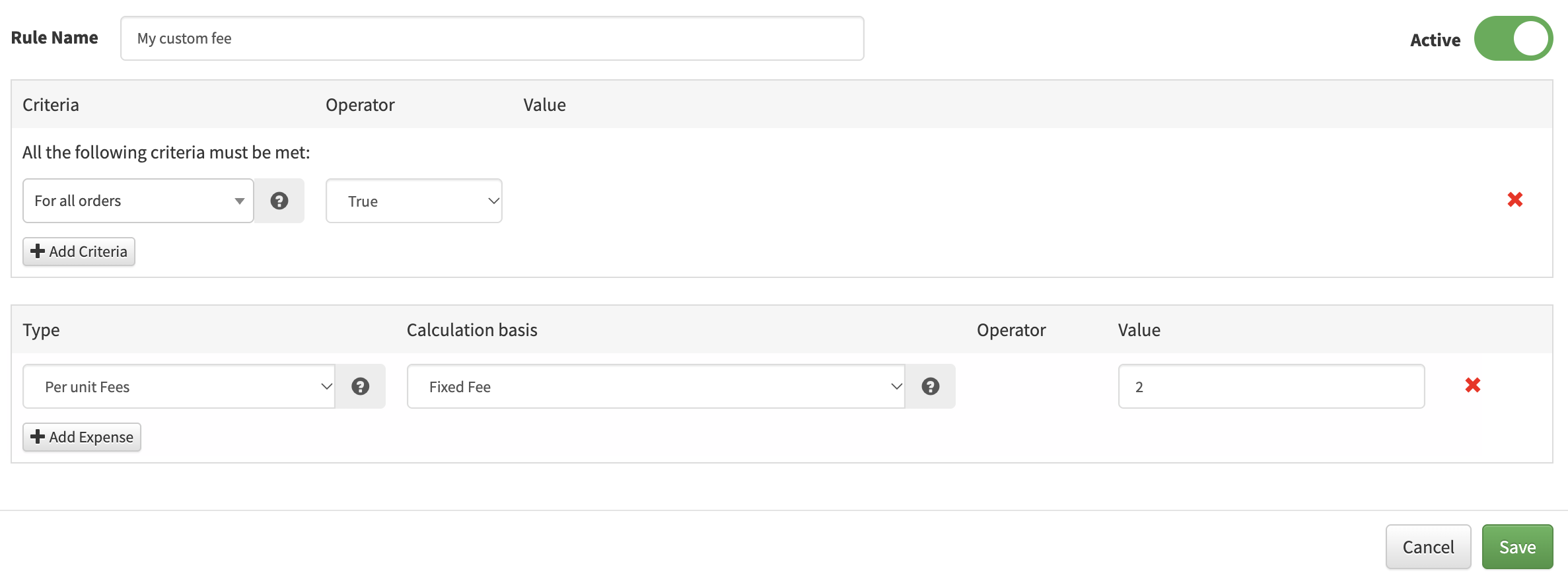
If the rule applies to all products:
| Product | Quantity | Assigned Fee |
|---|---|---|
| SKU A | 2 | $4 |
| SKU B | 1 | $2 |
Applying Per Unit Fees to Specific SKUs
You can also use the rule criteria to apply a fee only to specific products.
For example, the same order contains:
- SKU A: 2 units
- SKU B: 1 unit
You create a rule with:
- Criteria: SKU A
- Fee type: Per Unit Fee
- Fee amount: $2
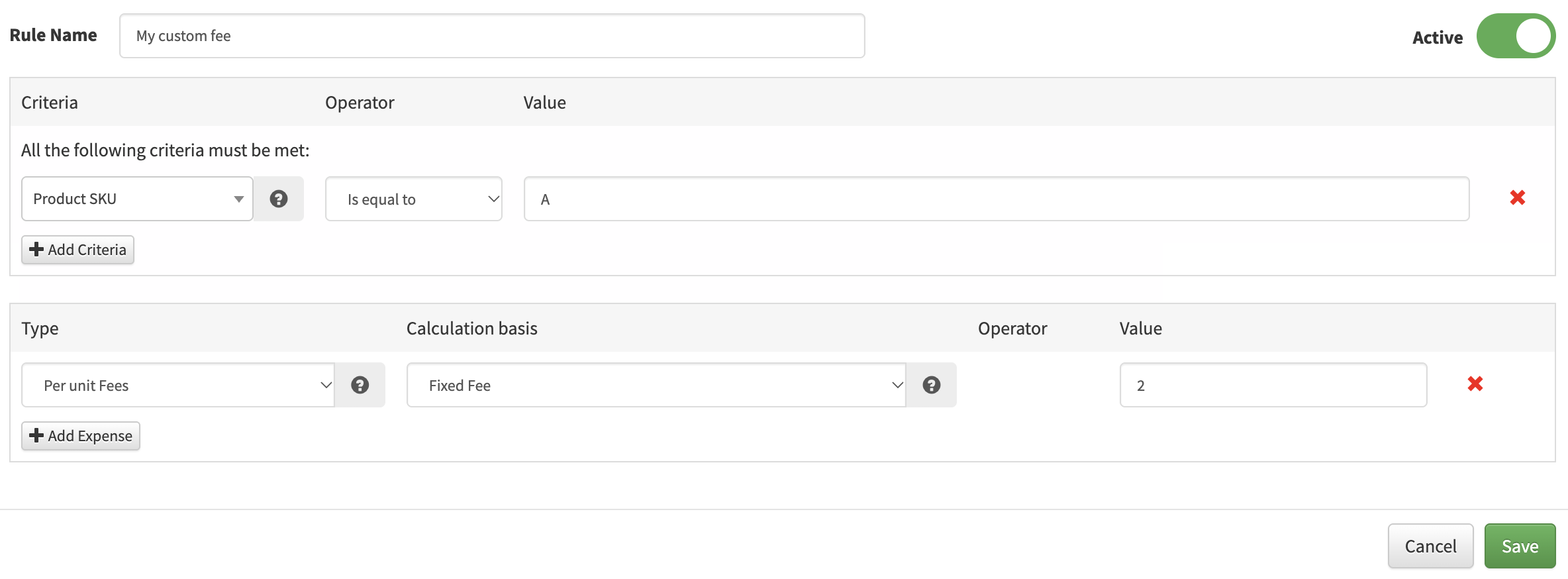
The result:
| Product | Quantity | Assigned Fee |
|---|---|---|
| SKU A | 2 | $4 |
| SKU B | 1 | $0 |
Only SKU A receives the fee because it matches the rule criteria.
If you do not specify an SKU in the criteria, the Per Unit Fee applies to every unit in orders matching the other rule conditions.
Which Fee Type Should You Use?
Use Total Fees when a fee applies to an entire order, such as a fixed order processing fee.
Use Per Unit Fees when the cost depends on the number of units sold, such as a packaging or handling fee charged per item.
You can combine different automation rules to calculate multiple fees and get a more accurate view of your profits.
Important Notes
- Product costs must be entered in Inventory for accurate profit calculations.
- Available financial data varies by marketplace.
- Walmart reconciliation data may be delayed by up to two weeks or longer, depending on report availability.
- Automation Rules help you add fees that are not automatically provided by marketplaces.
- Profit & Loss calculations depend on the product costs, marketplace data, and automation rules you configure.