
When using GeekSeller with Shopify, sometimes you need to create a dedicated GeekSeller location in Shopify and set it with a higher priority than certain app-created fulfillment locations.
Some fulfillment locations are created and controlled by third-party apps. In those cases, Shopify may restrict other apps from updating fulfillment information for orders assigned to that location. This can prevent GeekSeller from adding shipment tracking numbers.
Setting up a dedicated GeekSeller location and prioritizing it correctly can help avoid these fulfillment and tracking issues.
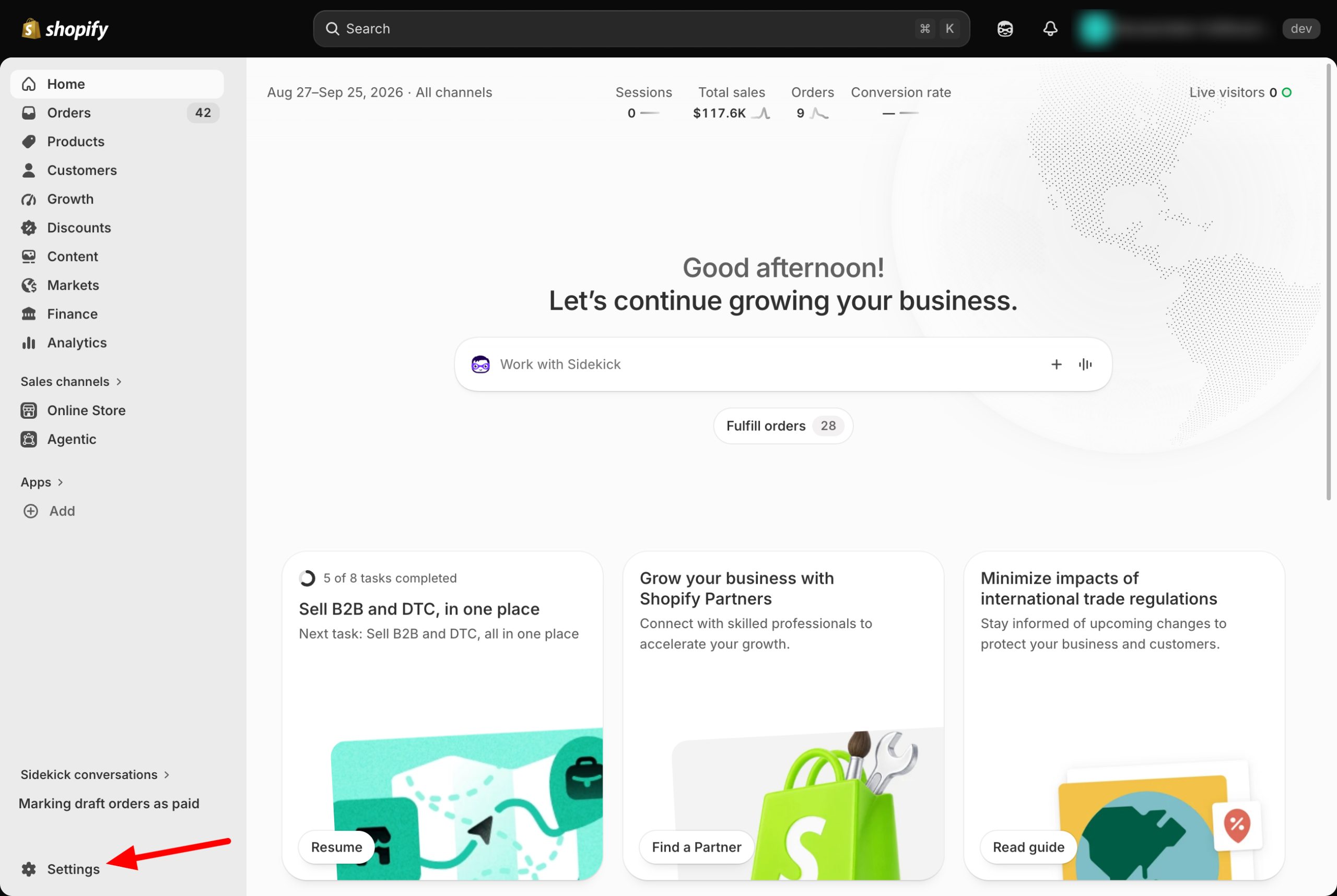
- Go to Shopify > Settings > Locations. Create a new location.
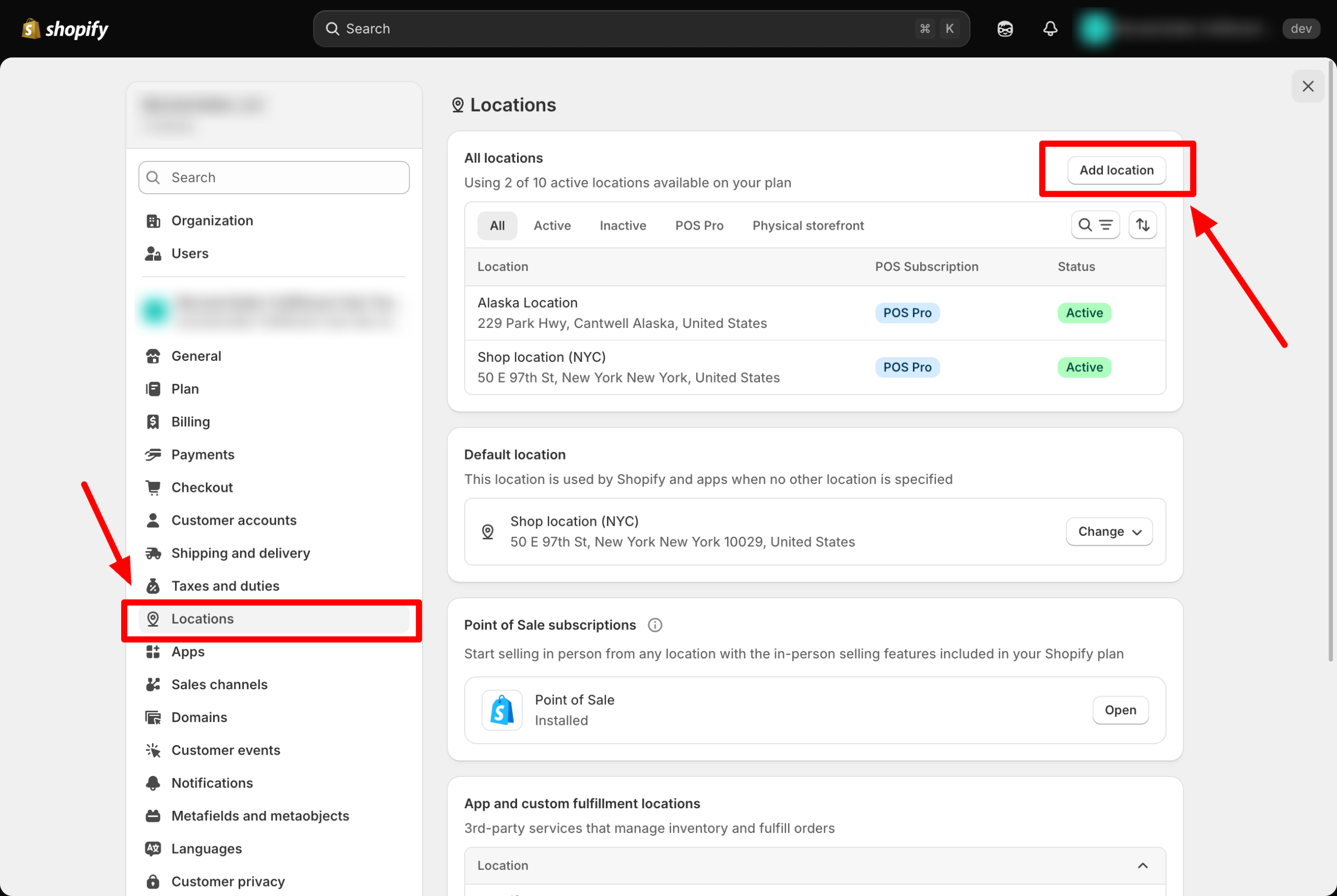
- Create a new location called GeekSeller, with the state set to Texas.
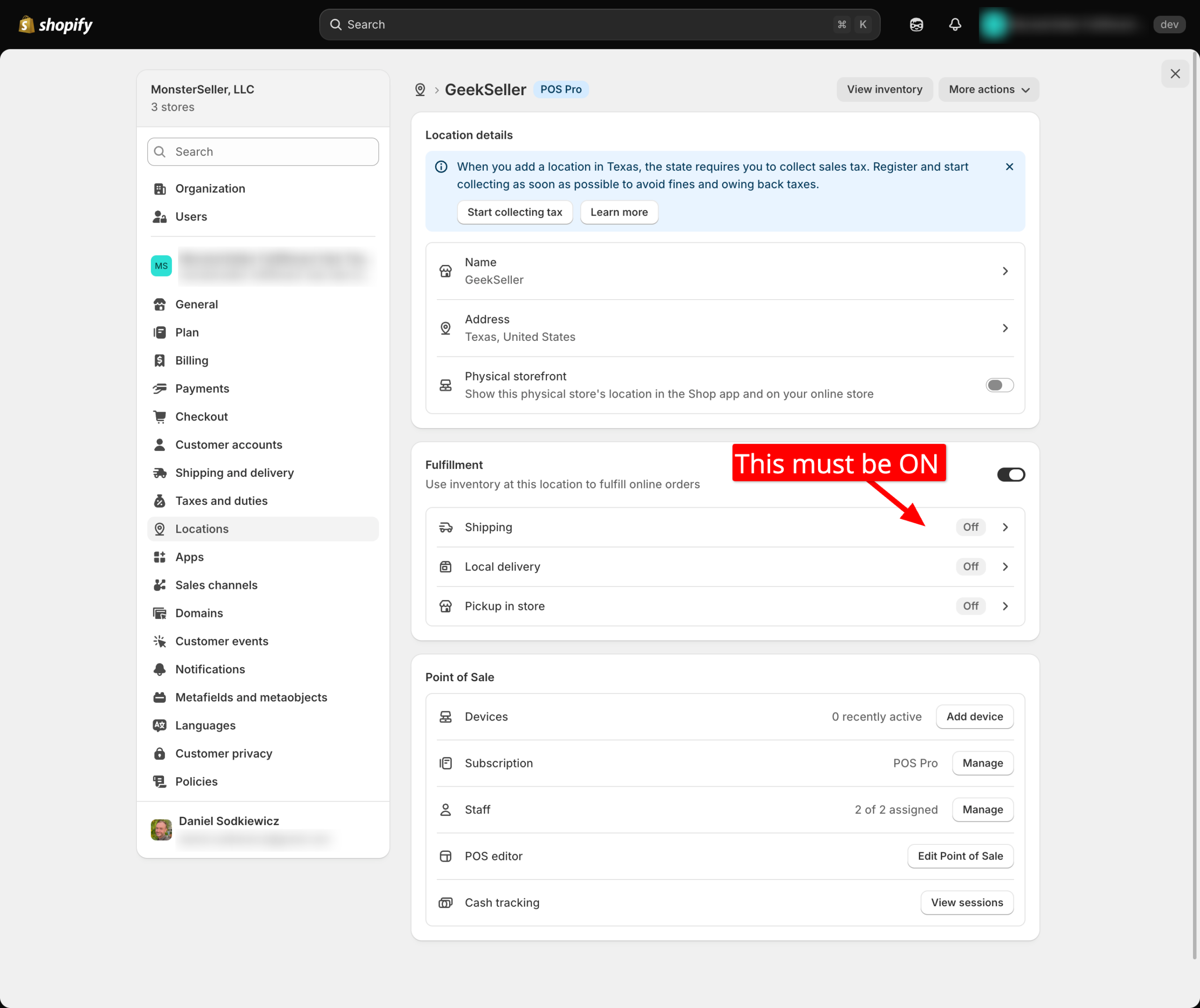
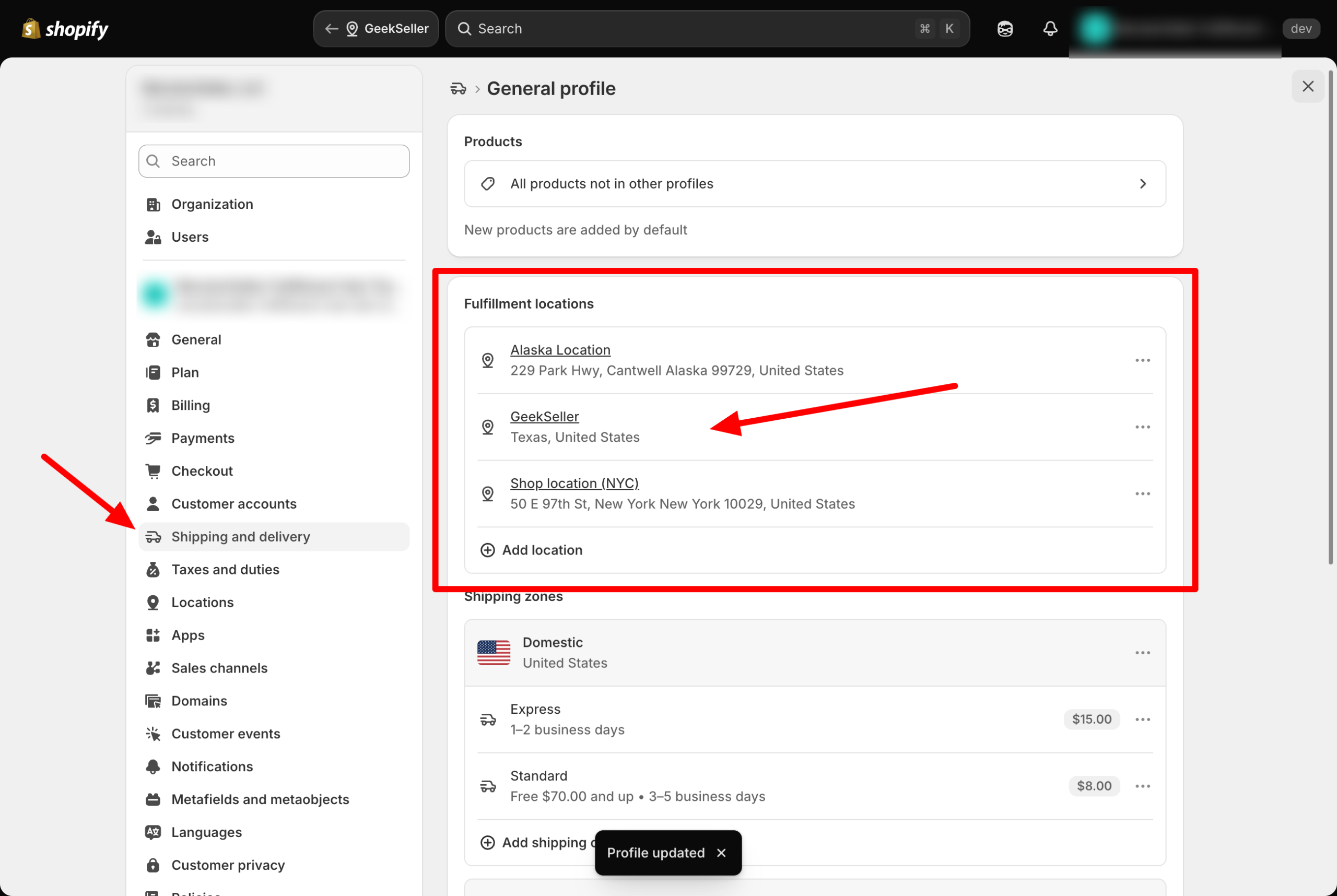
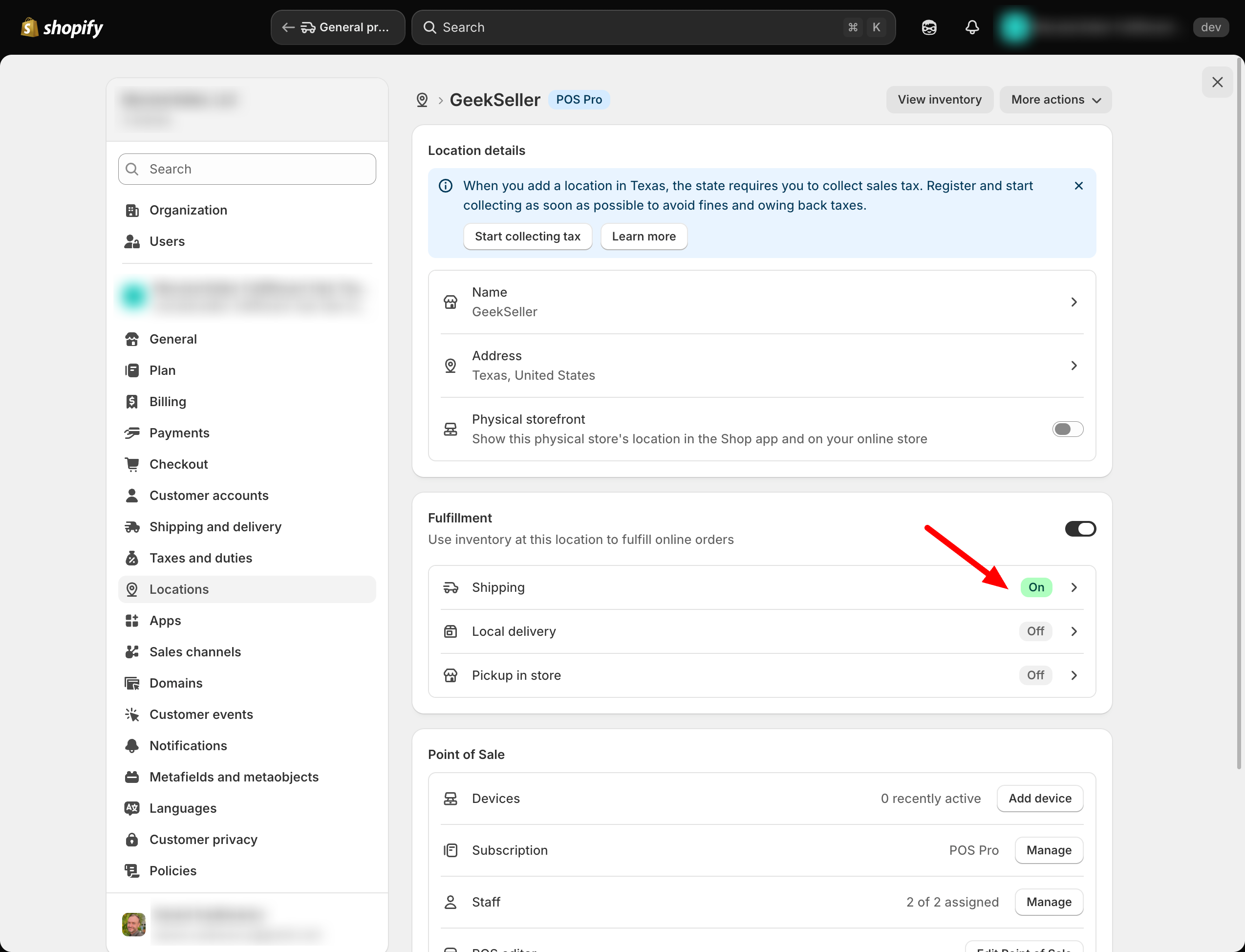
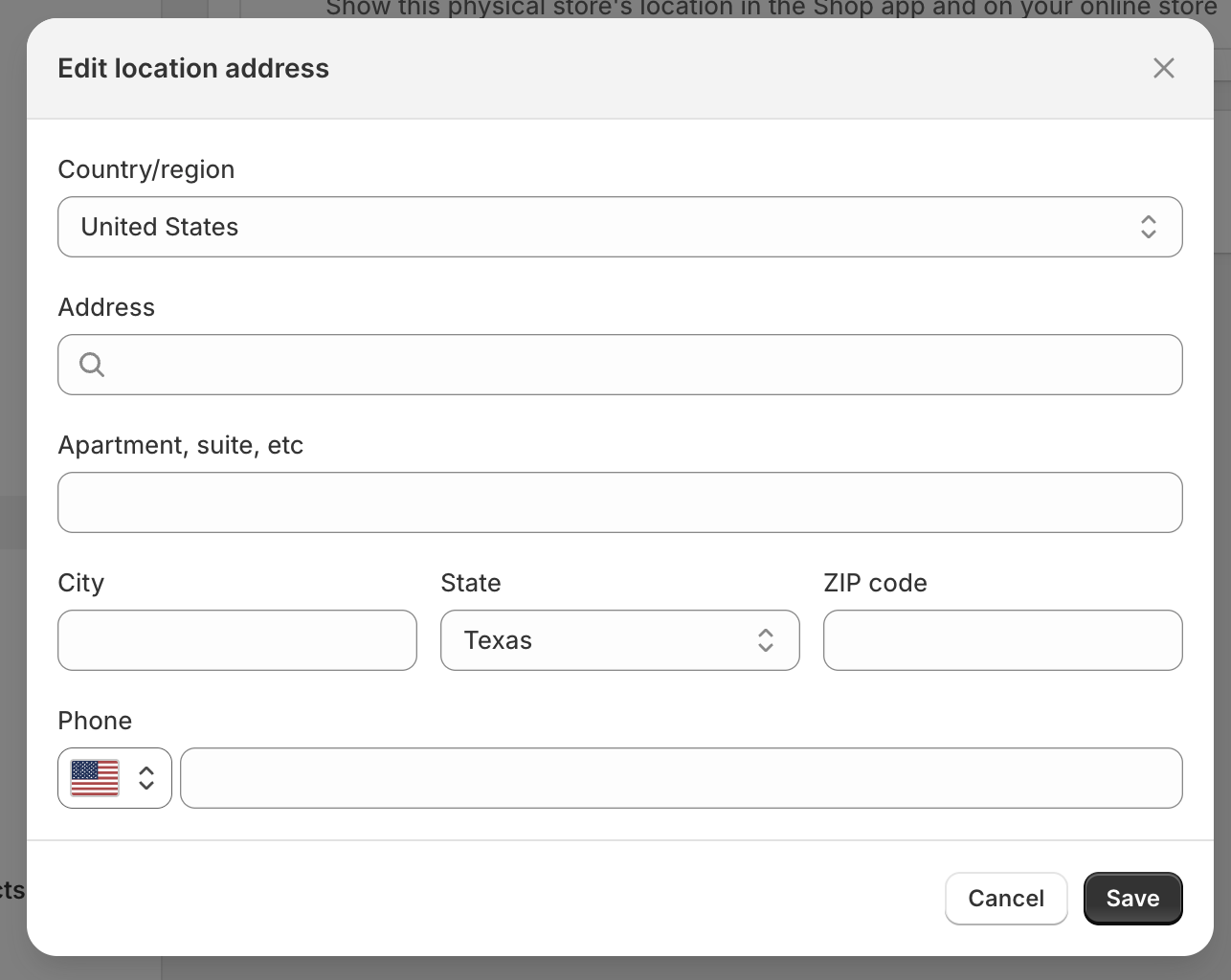 Make sure the Shipping option is active for this location. Click Shipping, then activate it by clicking Start shipping and assign the GeekSeller location to your default shipping profile.
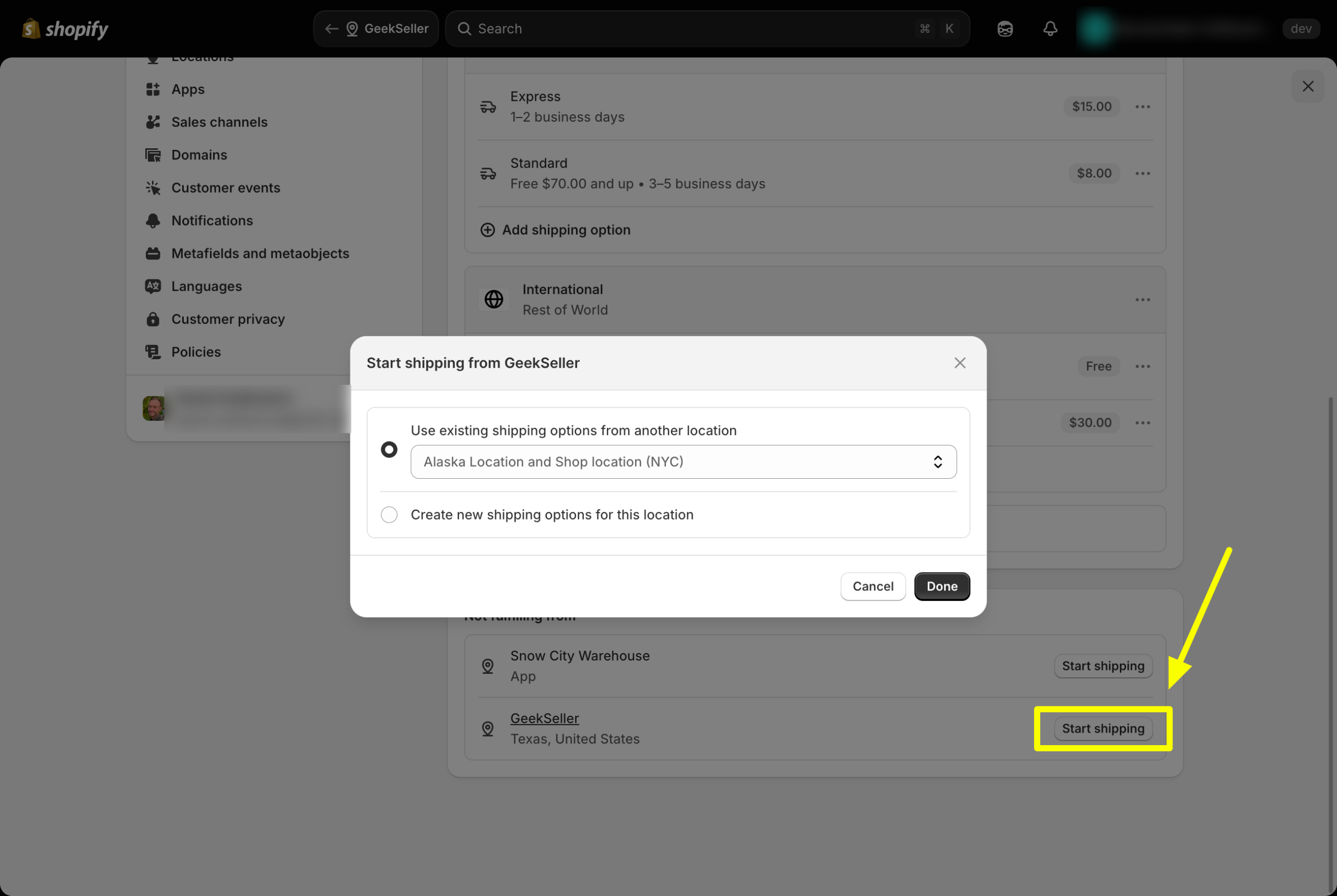
The final setup should look like this:
Shipping and delivery page
GeekSeller location view
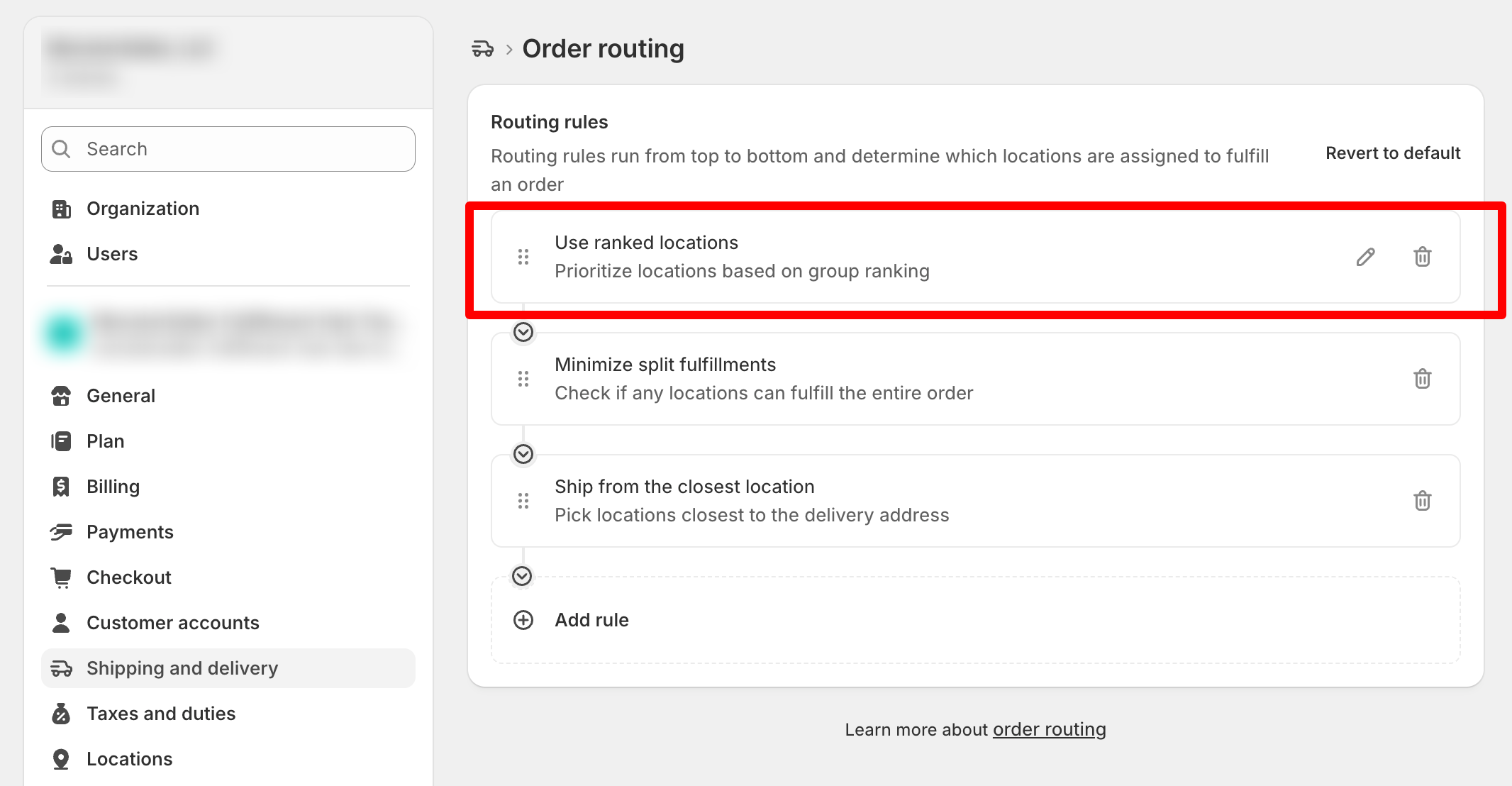
- Go to Shopify > Settings > Shipping and delivery > Order routing.
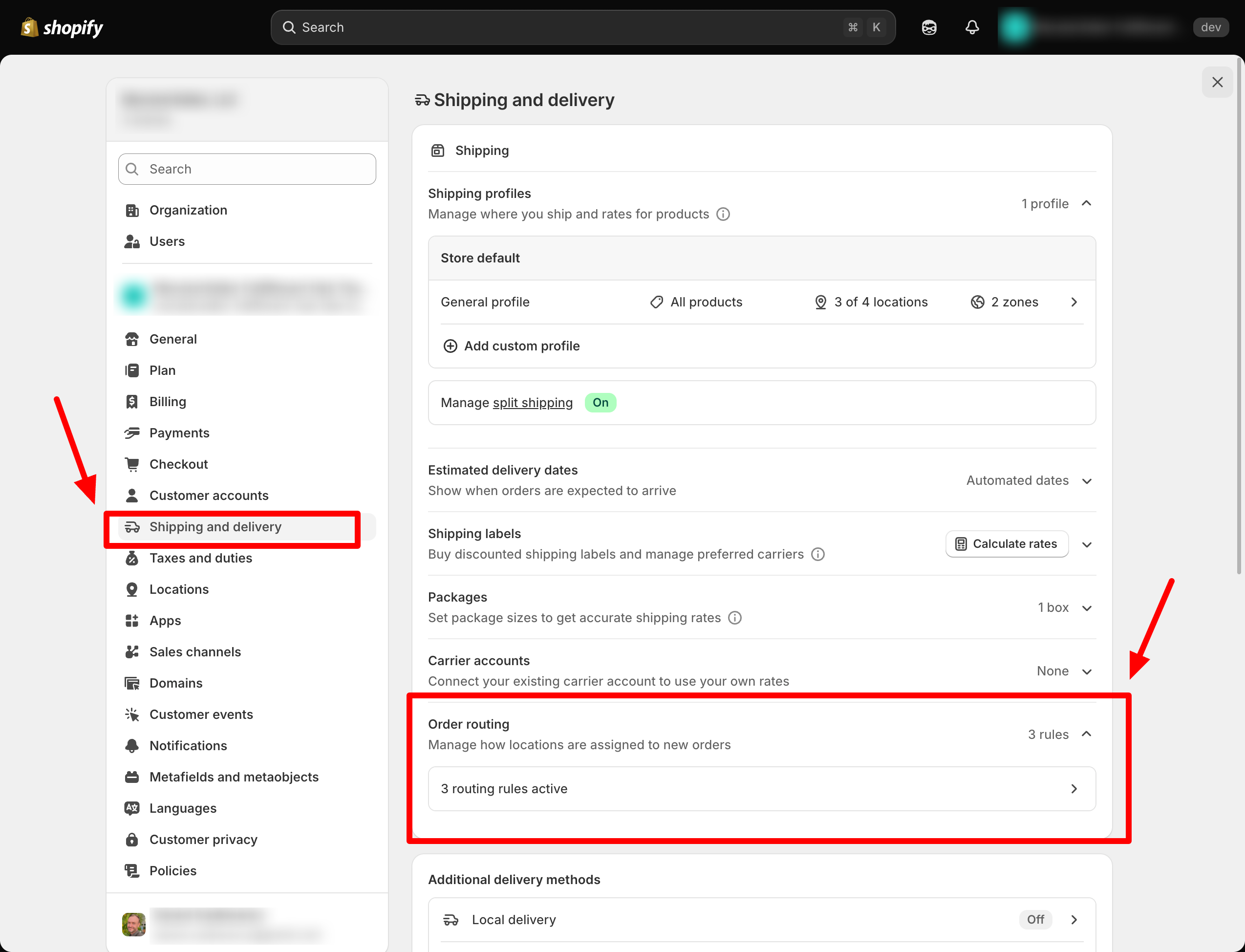 Add a new rule called Use ranked locations. Keep the GeekSeller location in a separate group at the very top.
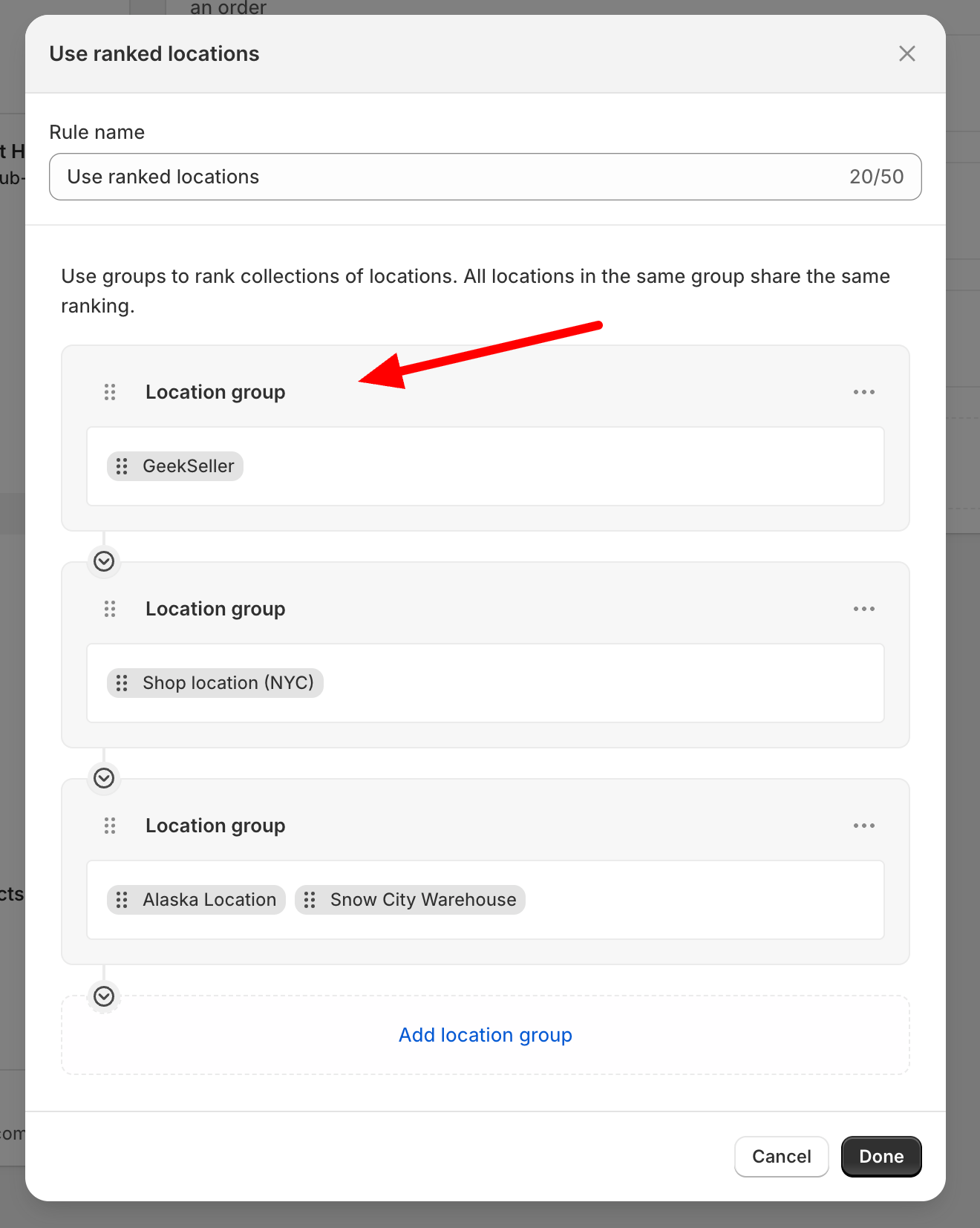
Also keep the Use ranked locations rule at the top, since Shopify applies higher rules first.
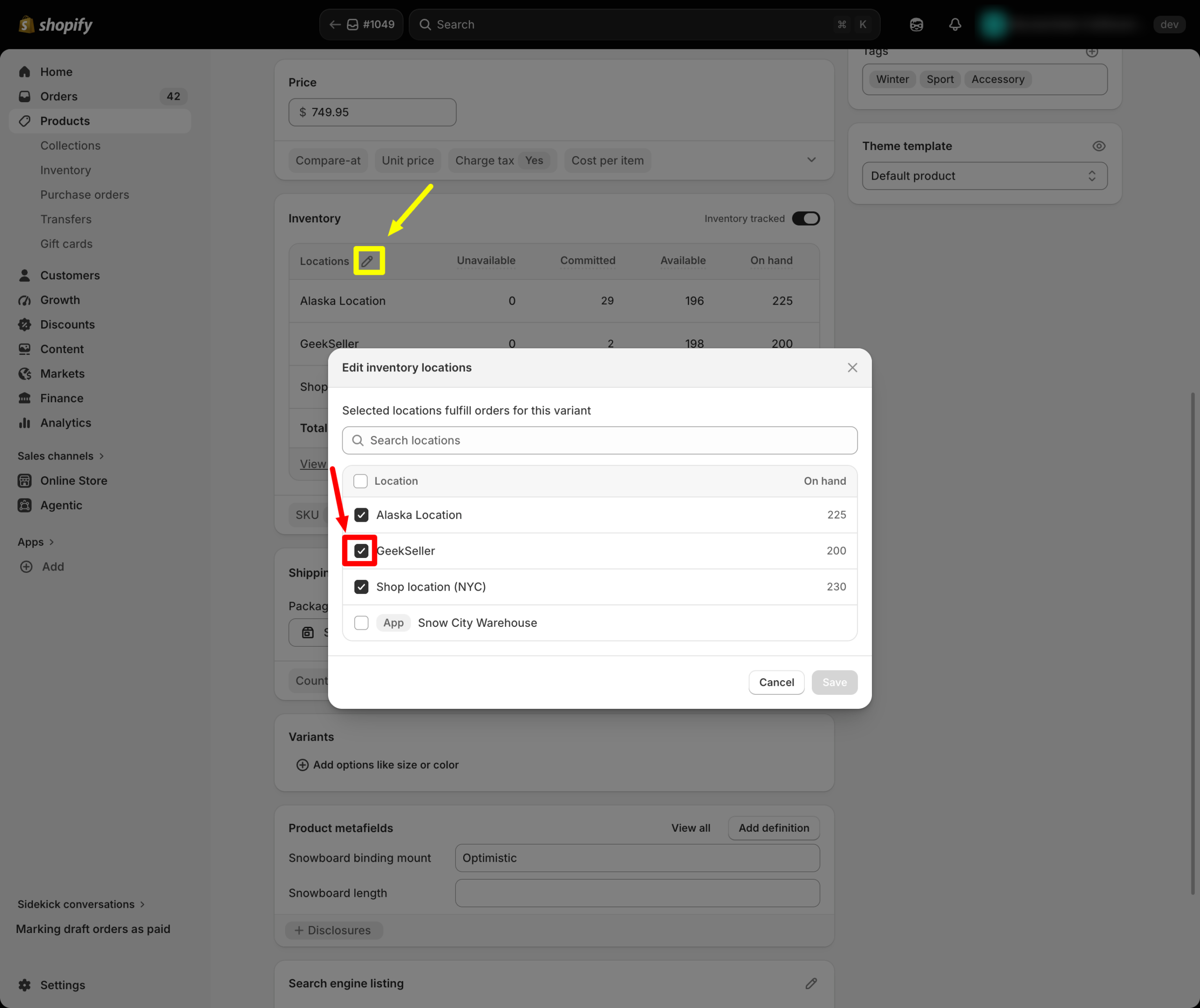
- Make sure your products have the GeekSeller location assigned to them.Also make sure GeekSeller is configured to send inventory quantities to this location. Shopify needs inventory available at the GeekSeller location in order to assign orders to it.
If you have any issues with the setup, please contact us and our support team can help you configure it correctly.