
In GeekSeller, you can use alternate SKUs to connect different marketplace SKUs to the same product.
To add an alternate SKU, go to Inventory, find your product, and click Edit SKU.
The same SKU cannot be assigned to multiple products. If the SKU you want to add already exists, you can enable the option “Delete the other product if the mapped SKU exists.”
When enabled, GeekSeller will automatically delete the existing product so you can use its SKU as an alternate SKU for another product.
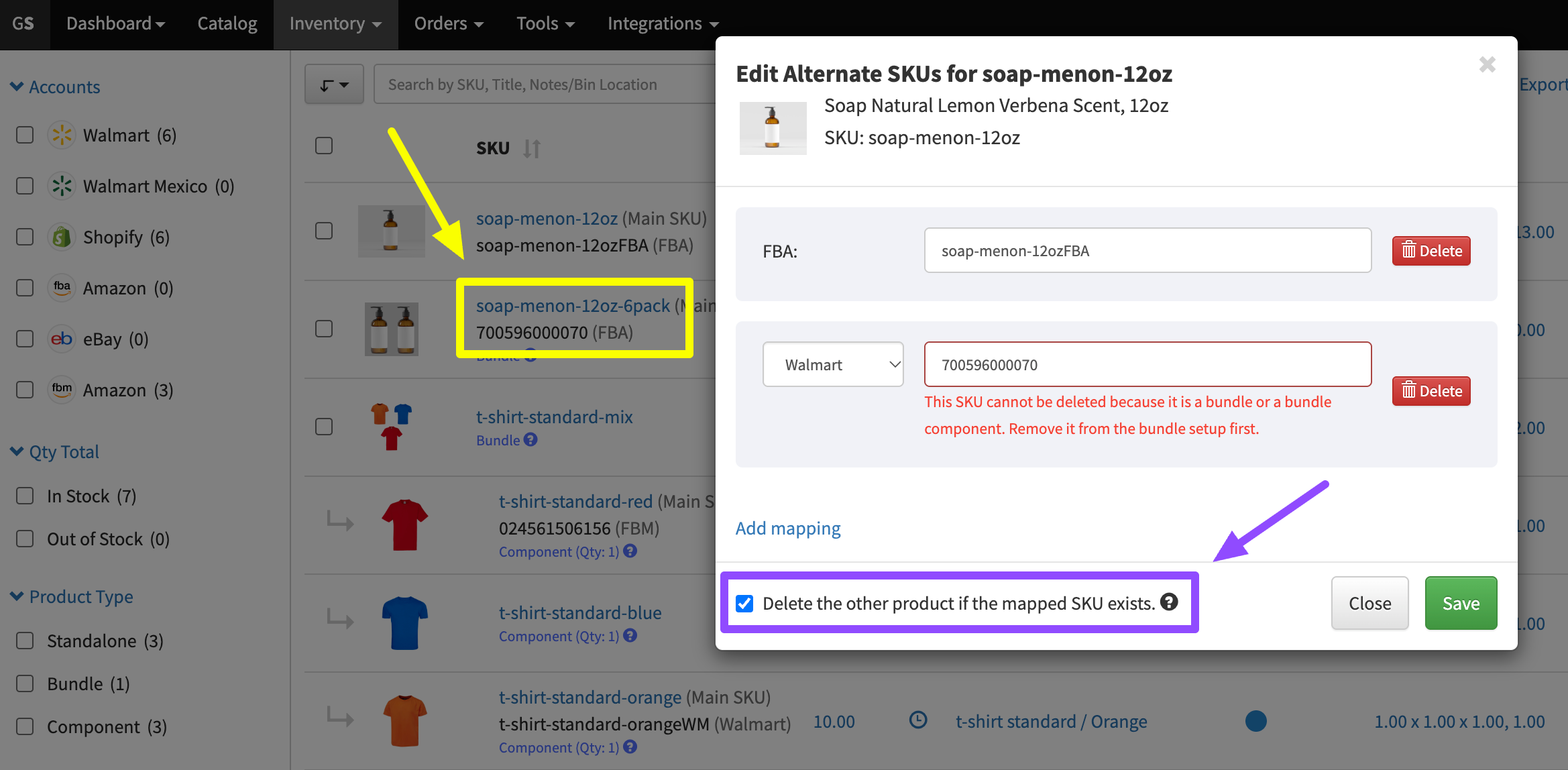
When can GeekSeller delete the existing product?
The existing product can only be deleted if it has no alternate SKUs and is not part of a bundle.
There are several exceptions:
- The SKU belongs to another product without alternate SKUs. GeekSeller will automatically delete that product and add the SKU as an alternate SKU to your selected product.
- The SKU belongs to another product that has alternate SKUs. The product cannot be deleted. You will see this error: “This SKU cannot be deleted because it has alternate SKUs.”
- The SKU is already an alternate SKU of another product. The existing mapping cannot be removed automatically. You will see this error: “This SKU cannot be deleted because it is an alternate SKU of another product.”
- The SKU belongs to a bundle or bundle component. The product cannot be deleted. You will see this error: “This SKU cannot be deleted because it is a bundle or a bundle component. Remove it from the bundle setup first.”
If you encounter any of these errors, you must manually resolve the conflict before adding the SKU.
We recommend backing up your inventory file before enabling this option, since products may be permanently deleted.